
WhatsApp numbers
A WhatsApp number is a phone number from your WhatsApp Business account that you connect to Live Hub, so that callers can reach your bot over WhatsApp voice calling.
WhatsApp numbers route like any other channel: a routing rule sends their calls to a bot or contact center. They cannot be routed to Microsoft Teams, SIP trunks, or ordinary phone numbers.
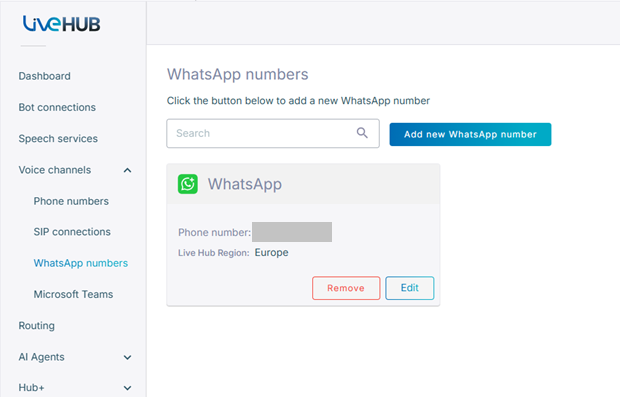
On the WhatsApp numbers screen, each WhatsApp number is a card that shows the number, the name you gave it, its region, and its status.
Before you begin, make sure that you have an active Facebook account and a verified WhatsApp Business account.
Connect a WhatsApp number
Connecting a number consists of two stages. First, complete the configuration in Live Hub. Live Hub then sends you to Facebook to authorize the integration.
To connect a WhatsApp number:
-
In the Navigation pane, expand Voice channels, and select WhatsApp numbers.
-
Click Add new WhatsApp number.
-
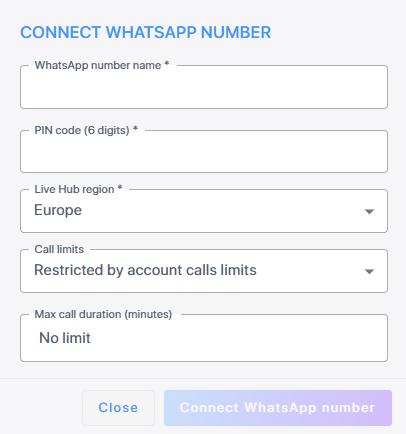
In the 'Number name' field, enter a name for the number.
-
In the 'PIN code (6 digits)' field, enter a six-digit PIN for multi-factor authentication.
If the number already has a PIN in your WhatsApp Business account, enter that one. If it does not, whatever you enter here becomes its PIN.
-
From the 'Live Hub region' drop-down list, select the region your Live Hub voice infrastructure runs in. See Global region support.
-
From the 'Call limits' drop-down list, select how many calls the number may carry. The default, Restricted by account calls limits, follows the account.
-
From the 'Max call duration (minutes)' drop-down list, select how long a call may last. The default is No limit.
-
Click Connect WhatsApp number, and then complete the Facebook sign-up flow described below.
Authorize the integration with Facebook
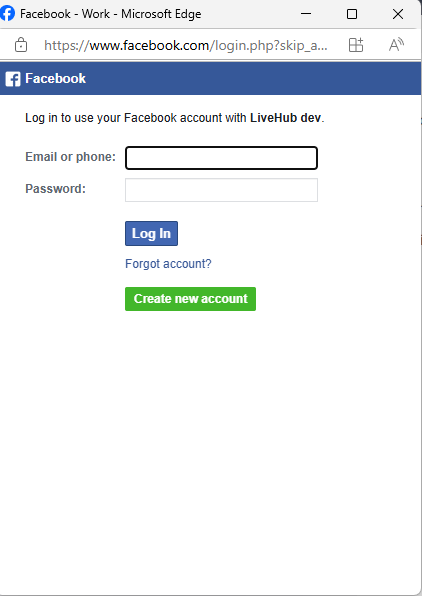
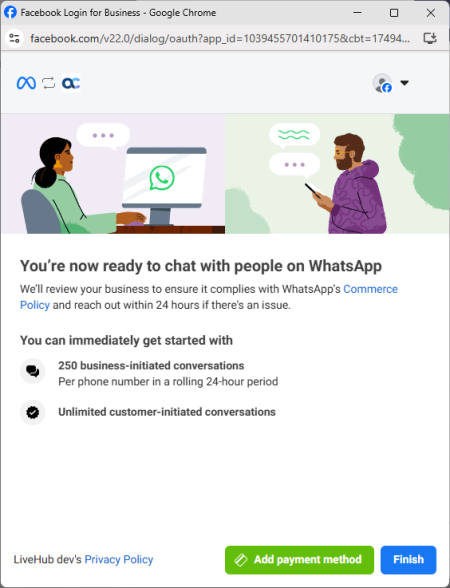
A Facebook window opens for you to link your WhatsApp Business account to Live Hub.
-
If you are not already signed in, sign in to Facebook.
-
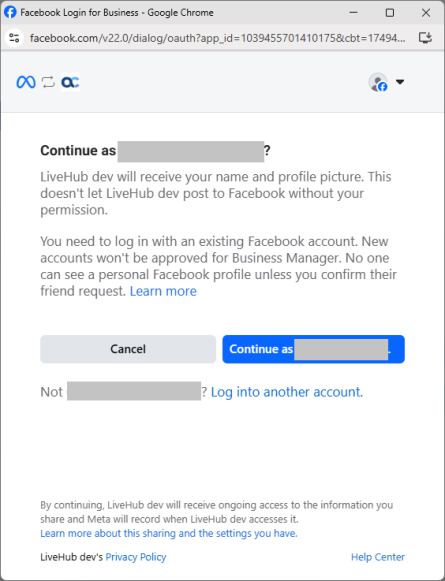
Click Continue as {yourLoginName}.
-
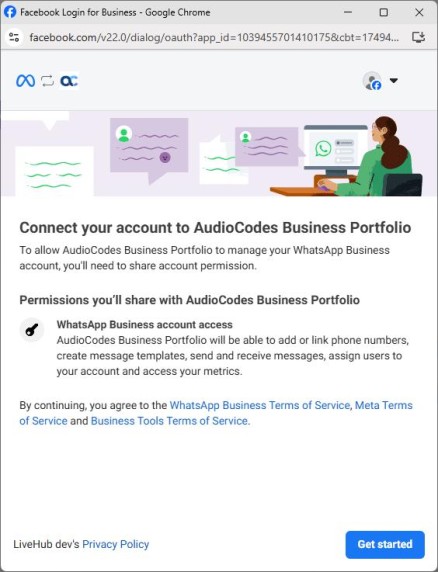
Click Get started.
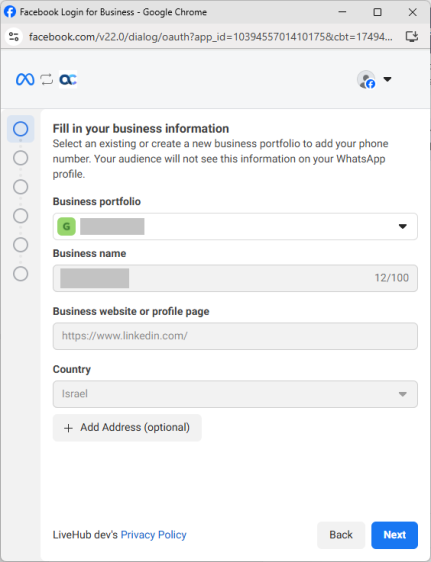
-
From the 'Business portfolio' drop-down list, select the account to use, from the 'Business name' list select the business, and then click Next.
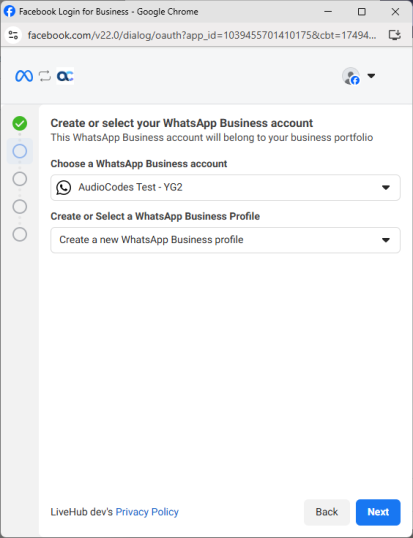
-
From the 'Choose a WhatsApp Business account' drop-down list, select your account, from the 'Choose or Select a WhatsApp Business profile' list select your profile, and then click Next.
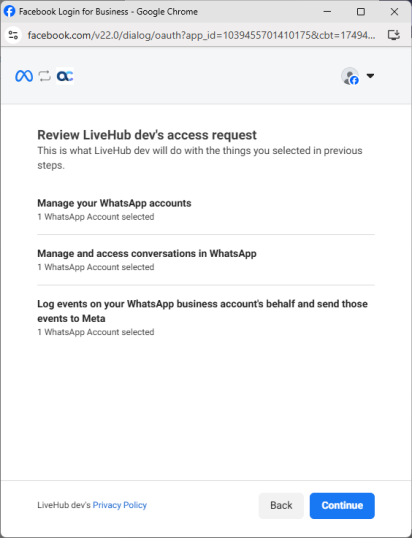
-
Click Continue.
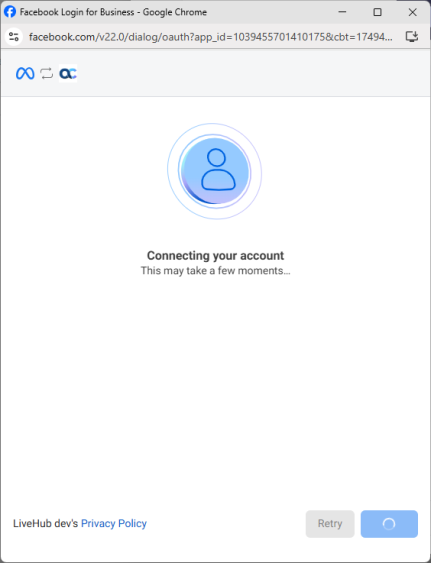
-
Click Finish.
Edit a WhatsApp number
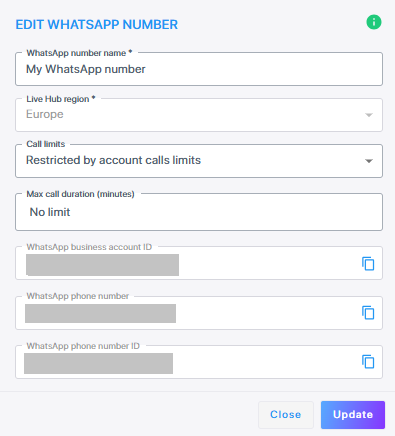
You can edit only the display name, call limits, and maximum call duration for a WhatsApp number. The number card also shows the connection status: green when the number is connected and red when it is disconnected.
If you do not have permission to update the configuration, you can view the details but cannot edit them. To edit a WhatsApp number:
-
In the Navigation pane, expand Voice channels, and select WhatsApp numbers.
-
On the number's card, click Edit.
-
Change the 'Number name', 'Call limits', or 'Max call duration (minutes)', and then click Update.
Delete a WhatsApp number
Deleting a WhatsApp number does more than remove ithe numberts card. Live Hub sends a deletion request to WhatsApp, removes any routing rules associated with the number, deletes the underlying SIP connection, and then removes the number from Live Hub.
To delete a WhatsApp number:
-
In the Navigation pane, expand Voice channels, and select WhatsApp numbers.
-
On the number's card, click Remove, and then confirm with Delete.